Start in a minute
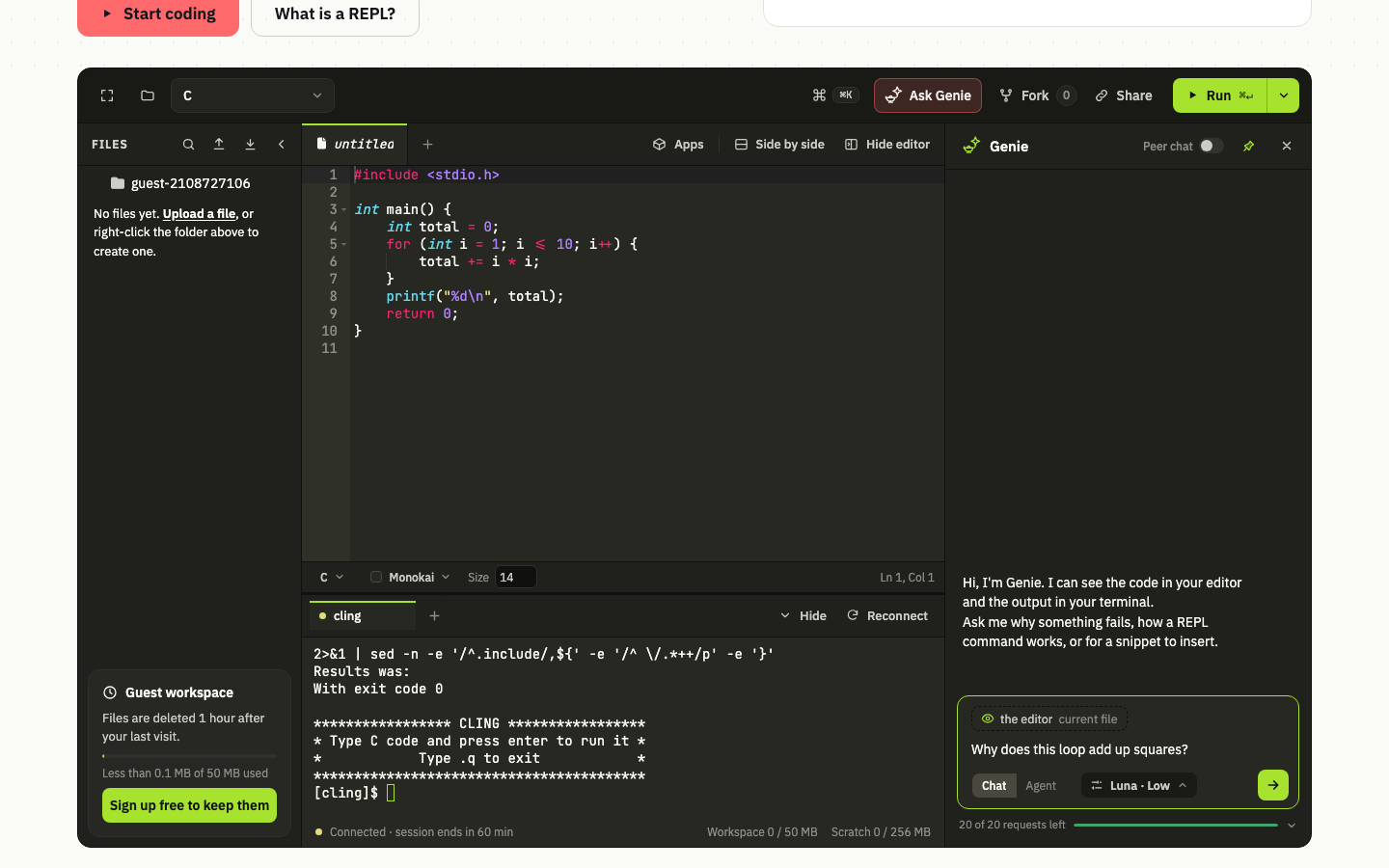
- Open Genie. Press Ask Genie in the top bar. The pin in its header keeps it beside your code.
- Ask. Type a question and press Enter (Shift Enter for a new line). Genie sees your editor code and the latest terminal output, so you can ask why something fails without pasting anything.
- Use the answer. Code in an answer has Insert and Replace buttons. A change to your code is shown as a diff and applied only when you accept it.
Give it your code
Point Genie at exactly what it should look at.
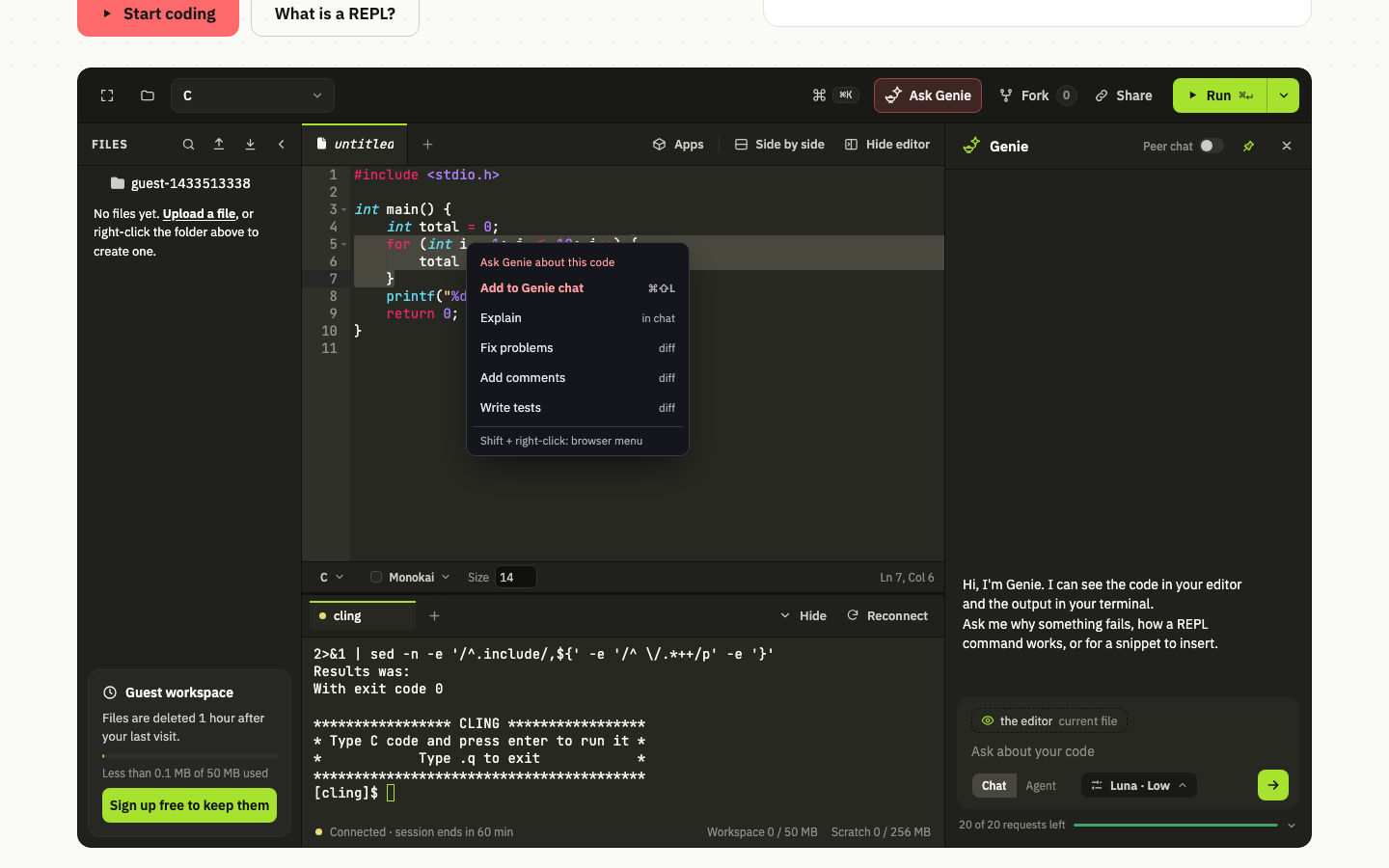
- Select code and right-click: Explain answers in the panel. Fix problems, Add comments and Write tests show their change as a diff with Accept and Reject for each part.
- Add to Genie chat: right-click a file or folder in the Files panel, or select code or terminal text and press Ctrl Shift L (Cmd Shift L on a Mac). Each addition is a chip above the message box.
- Type # and a few letters of a name in the message box to pick a file from the list.
Chat or Agent
- Chat answers questions. Everyone can use it.
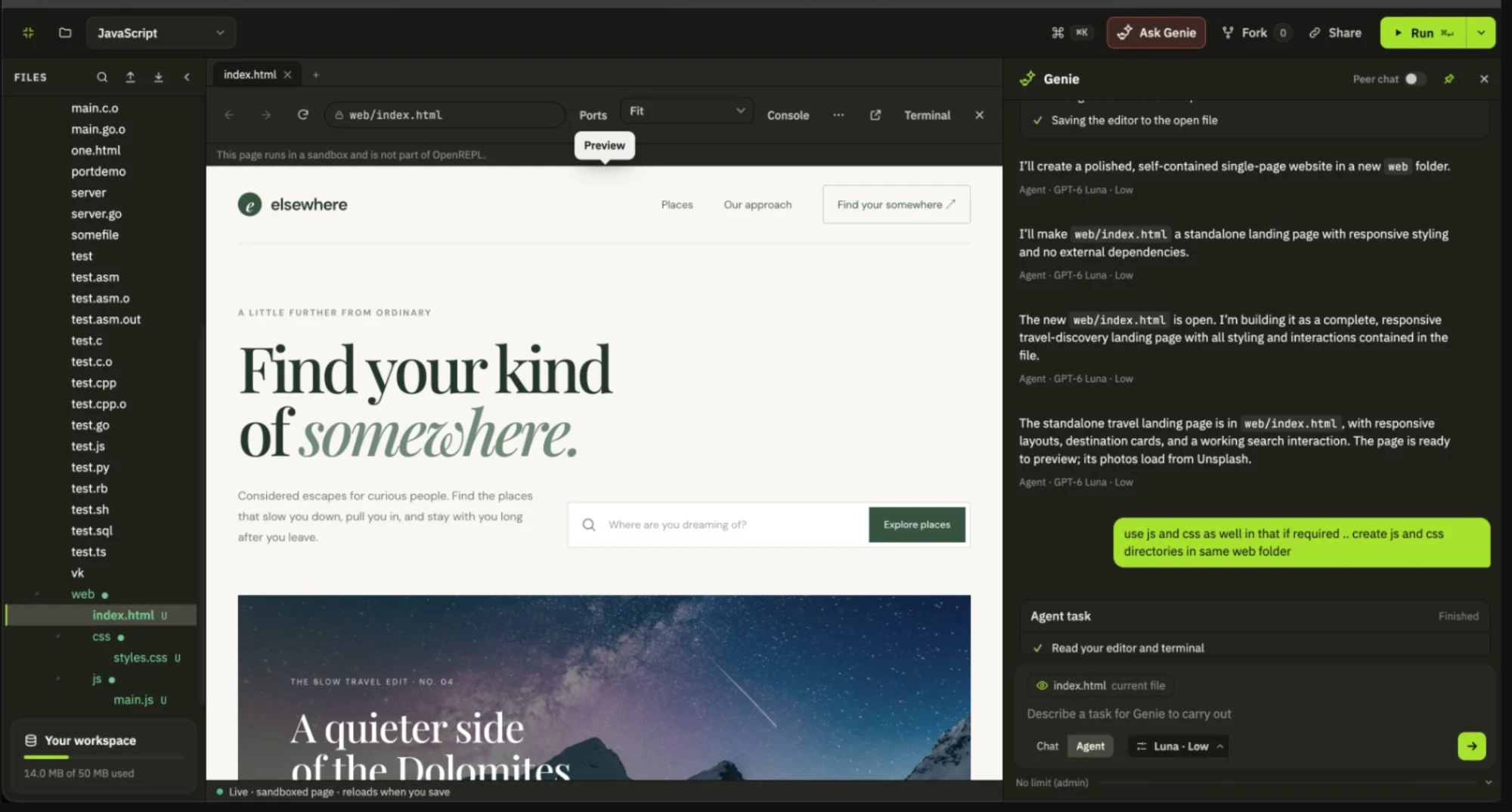
- Agent carries out a task in steps: it writes in the editor, switches the language, presses Run and reads the output. It is for signed-in users: switch from Chat to Agent beside the Send button.
Each mode remembers its own model, so choosing a model in Agent does not change your Chat model.
Agent mode, safely
Describe a task, for example "write a program that prints ten squares and run it". The card starts with a plan that the agent ticks off as it goes.
- It asks first before it changes your editor, switches the language, runs your program or uses the terminal: Allow once, Allow for this session, or Deny.
- You see every change as a diff, applied only when you accept it.
- Undo this task at the end of the card puts everything back as it was, unless you changed it since.
- Riskier things (risky terminal commands, deleting, renaming and moving, closing a terminal tab) are asked every time. A delete moves to a Trash folder of your workspace.
- When a task uses its steps it pauses and asks. Carry on continues the same task.
- Notes about your project: a file named GENIE.md in your workspace tells it how to run the project, the style and what not to touch. Put the important lines first: only the first part is read.
Chats and tabs
Each chat is a tab above the conversation, saved in your own workspace, so it comes back after a reload and follows your workspace. The list button shows every chat; you can rename, close and reopen them, and export a chat as Markdown.
While the panel has the focus: Alt T a new chat, Alt W close, Alt ← → move between chats, Alt 1 to 8 go to a chat, Alt H all chats.
Models and requests
- Choose the model with the chip beside Send. Star a model to keep it in your list, open Other models for the rest, or search (press /).
- Some models think first and have an effort setting; some are free and share a daily allowance. A small model gets a note in Agent mode, because Agent works best with a stronger one.
- Each message, and each Agent task, uses one request. The line under the message box shows how many you have left and when they refill; click it for the details. Signed-in users get more.
On a phone
Genie is the third tab of the switch above the workspace, beside Editor and Terminal, and fills the screen there. A dot on the tab shows when it is working or needs you; leaving the tab does not stop it.
Practice coach
On the practice page Genie works as a coach: it gives hints without handing you the answer, reviews your solution and explains its complexity. Only Explain is offered in the right-click menu there.
Keys
Press ? outside a text field for the list of all the keys. The ones for Genie: Enter sends, Shift Enter starts a new line, Ctrl Shift L adds the selection to the chat, and the Alt keys above move between chats.
Questions
Are my chats kept?
Yes, in your own workspace. You can delete them from your profile page.
Does Genie keep working if I close its panel?
Yes. An answer or an Agent task carries on while the panel is closed.
What does Genie see?
Your editor code and the latest terminal output, and the files you add to the chat. You can click the dashed chip to stop it looking at the editor.
More answers: the Genie questions in the FAQ.
Still stuck? Ask Genie "how do I…", it knows this guide.